
Projects
Projects are the top-level objects in smenso and form the structural foundation for organizing work. All tasks, subtasks, planning data, time records, absences, status reports, and metadata are associated with a project.
Projects in smenso are intentionally flexible and can represent a wide range of use cases - from small internal initiatives to complex, long-running programs involving multiple teams, external systems, resource planning, and reporting requirements.
A project typically defines:
- the scope and timeframe of work
- the people involved
- structural elements such as tasks and subtasks
- optional metadata through flavors
Projects can be created manually in the UI or programmatically via the API, either from scratch or based on predefined templates.
Prerequisites (Getting Started)
This guide assumes you’re familiar with:
- Authentication: https://developers.smenso.de/docs/authentication
- Integration tickets (async processing & polling): https://developers.smenso.de/docs/integration-tickets-async-processing-polling
- Dates & time zones: https://developers.smenso.de/docs/dates-time-zones
- Permissions & privacy: https://developers.smenso.de/docs/permissions-privacy
Available Endpoints
Integration JSON API (read & write)
| Action | Method | Reference |
|---|---|---|
| Get projects (list) | GET | https://developers.smenso.de/reference/integrationgetprojects |
| Get project (single) | GET | https://developers.smenso.de/reference/integrationgetproject |
| Create projects (bulk) | POST | https://developers.smenso.de/reference/integrationcreateprojects |
| Create project from template | POST | https://developers.smenso.de/reference/integrationcreateprojectfromtemplate |
| Update projects (bulk) | PUT | https://developers.smenso.de/reference/integrationupdateprojects |
| Update project master data from template | PUT | https://developers.smenso.de/reference/integrationupdatemasterdatafromtemplateinproject |
| Archive project | POST | https://developers.smenso.de/reference/integrationarchiveproject |
| Unarchive project | POST | https://developers.smenso.de/reference/integrationunarchiveproject |
| Delete project | DELETE | https://developers.smenso.de/reference/integrationdeleteproject |
Integration XML API
| Action | Method | Reference |
|---|---|---|
| Create / update project | POST | https://developers.smenso.de/reference/post_api-integration-project |
| Delete project | DELETE | https://developers.smenso.de/reference/delete_api-integration-project-projectid |
| Archive project | POST | https://developers.smenso.de/reference/post_api-integration-project-archive-projectid |
| Create project from template | POST | https://developers.smenso.de/reference/post_api-integration-template-project-create-templateid |
| Update project master data from template | POST | https://developers.smenso.de/reference/post_api-integration-template-project-updatemasterdata-templateid |
The XML API uses a singlePOSTendpoint for both create and update. If a project GUID is included in the XML payload, the existing project is updated. If no GUID is provided, a new project is created.
Reporting API (read-only exports)
| Action | Method | Reference |
|---|---|---|
Get all projects (CSV/JSON via format) | GET | https://developers.smenso.de/reference/reportingreportprojectswithglobalfilter |
| Get all projects (POST with advanced filters) | POST | https://developers.smenso.de/reference/reportingreportprojectsfiltered |
| Get project (single report) | GET | https://developers.smenso.de/reference/reportingreportprojects |
| Get projects (Excel export) | POST | https://developers.smenso.de/reference/reportingreportprojectsexcel |
| Get projects by saved filter | GET | https://developers.smenso.de/reference/reportingreportprojectsbysavedfilter |
Reporting endpoints return all projects the caller is allowed to see, optionally filtered and formatted. See the endpoint references for supported query parameters (e.g.filter,format,view,lang,headers,timezone).
IDs & Correlation
Common identifiers you’ll encounter:
projectId: internal project GUID used by endpoints like Get / Archive / Delete.externalId: optional identifier used to correlate projects with external systems.tempId: optional client-defined ID to correlate items in bulk/async requests with the ticket result (it is not a template ID).
tempIdvs.templateId
templateId(GUID) identifies a template and is used in the URL when applying a template, e.g.:POST /api/integration/project/json/{templateId}tempIdis a value you choose and send inside the request body to match each input object to the corresponding outcome in the async ticket response.Example (bulk create with
tempId):{ "project": [ { "title": "Project A", "phaseId": "Marketing", "typeId": "External", "tempId": "row-001" }, { "title": "Project B", "phaseId": "Marketing", "typeId": "External", "tempId": "row-002" } ] }
Project Folder vs. task folders (avoid confusion)
The word “folder” appears in two different contexts in smenso:
1) Project master data: Project Folder
This is a top-level project attribute (often used to categorize projects).
- Bulk create/update uses
phaseIdfor this value. - Create-from-template uses
folderfor this value.
Note: In the create-from-template endpoint,folderrefers to the project’s Project Folder master-data field (not a task folder inside the project).
2) Task folders (inside a project)
Tasks can be organized into folders within a project. These are inherited/created through templates and task configuration, and are not set via phaseId / folder.
Key Fields (commonly used)
For the full schema, see the API reference for each endpoint. Frequently used fields include:
| Field | Type | Required | Description |
|---|---|---|---|
title | string | ✅ | Project title. |
phaseId | string | number | ✅ | Project Folder value (project master data). |
typeId | string | number | ✅ | Project Type value (project master data). |
startDate | date-time | ❌ | Project start date. |
endDate | date-time | ❌ | Project end date. |
projectManager | string | ❌ | Project lead identifier (workspace-specific; email). |
budget | number | ❌ | Overall project budget. |
currency | string | ❌ | Currency code (e.g. "EUR"). |
isActive | boolean | ❌ | Active/inactive state (not the same as archiving). |
flavor | object | ❌ | Custom field values. See the Flavors guide: https://developers.smenso.de/docs/flavors |
externalId | string | ❌ | External system reference for correlation. |
tempId | string | ❌ | Temporary ID to correlate batch results. |
Create Projects (Empty / From Scratch)
Use this endpoint when projects are generated dynamically from external systems, when each project is highly individual, or when you want full control over initial values.
POST /api/integration/project/json
Content-Type: application/json
Authorization: Basic {YOUR_TOKEN}{
"timezoneId": "W. Europe Standard Time",
"project": [
{
"title": "Website Relaunch 2026",
"phaseId": "Marketing",
"typeId": "External",
"startDate": "2026-05-01",
"endDate": "2026-10-31",
"projectManager": "[email protected]",
"budget": 50000,
"currency": "EUR",
"externalId": "EXT-001",
"tempId": "row-001"
}
]
}
This endpoint may return aticketId. Polling details: https://developers.smenso.de/docs/integration-tickets-async-processing-polling
Create a Project from a Template
Creating a project from a template applies a predefined structure and default settings - tasks, folders, flavors, and metadata - while still allowing individual overrides at creation time.
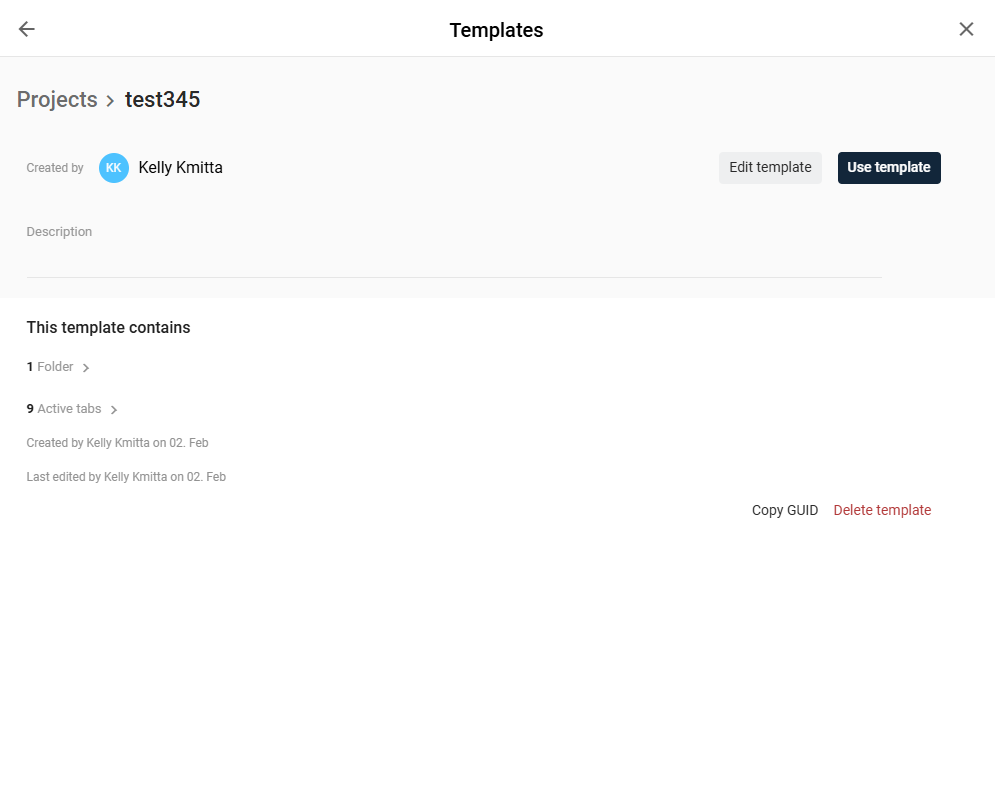
How to get the templateId
templateIdOpen the template in smenso and copy the GUID from the template details.
Endpoint
POST /api/integration/project/json/{templateId}
Content-Type: application/json
Authorization: Basic {YOUR_TOKEN}
Example
{
  "options": {
    "startDate": true,
    "adjustTaskDates": true,
    "tasks": true,
    "flavors": true,
    "labels": true,
    "manager": true,
    "tasksWorkflow": true,
    "tasksTemplate": true,
    "folderTasksTemplate": true,
    "viewSettings": true,
    "budget": true,
    "location": true,
    "description": true,
    "hourlyRate": true,
    "goal": true,
    "benefit": true,
    "observers": true,
    "permissions": true,
    "blockTimeRecording": true,
    "markedColumns": true,
    "columnDescriptions": true
  },
  "title": "Website Relaunch 2026",
  "folder": "Marketing",
  "projectType": "External"
}
Note onfolder: Project Folder vs. task foldersIn this endpoint,
folderrefers to the project’s Project Folder master-data field (the same concept asphaseIdin bulk create/update). It does not refer to task folders inside the project (those are controlled by template task settings such asfolderTasksTemplate).
Update Project Master Data (Bulk)
Use this endpoint to update individual fields on existing projects. Only fields explicitly included in the request payload are updated - all other fields remain unchanged.
PUT /api/integration/project/json
Content-Type: application/json
Authorization: Basic {YOUR_TOKEN}
Example (update by externalId)
externalId)If your workspace/API supports external identifiers, you can update projects by externalId instead of internal IDs by setting useExternalId.
{
  "timezoneId": "W. Europe Standard Time",
  "useExternalId": true,
  "project": [
    {
      "externalId": "EXT-001",
      "budget": 60000,
      "projectManager": "[email protected]"
    }
  ]
}
Archived projects and updatesIntegration XML API: Updating an archived project can unintentionally create a new project. In this case, the archived project is treated as “not found” and the XML
POSTrequest may be processed as a create operation - meaning the new project may end up containing only the fields you attempted to update (commonly just the flavors/custom fields).Integration JSON API: Archived projects cannot be updated via
PUT. If the target project is archived (or otherwise not found), the operation should fail and the async ticket should return a corresponding error/result indicating that the project was not found, rather than creating a new project.
Update Project Master Data from a Template (Master Data Only)
Use this endpoint to align the master data of an existing project with changes in a project template. This is useful when templates evolve over time - for example, when new flavors are added - and existing projects should be brought up to date.
Scope: master data only. This operation does not modify project structure (tasks, task folders, dependencies, etc.). It updates only the sections you explicitly enable in the request.
Selective update behavior (explicit only)
- Only attributes explicitly set to
trueare applied. - Attributes not referenced remain unchanged.
overwriteValuescontrols whether existing values should be overwritten (default:false).
Example (apply only selected master-data sections)
PUT /api/integration/project/json/{templateId}
Content-Type: application/json
Authorization: Basic {YOUR_TOKEN}{
"projectId": "4f9c2b2e-1234-5678-9abc-0a1b2c3d4e5f",
"flavors": true,
"labels": true,
"description": true,
"files": true,
"overwriteValues": false
}
Note onfiles: This imports template-level project files/attachments, but still does not apply task structure.
Archive and Unarchive a Project
Archiving and unarchiving are handled via dedicated endpoints:
POST /api/integration/project/json/archive/{projectId}
POST /api/integration/project/json/unarchive/{projectId}
Authorization: Basic {YOUR_TOKEN}
Delete a Project
Deleting a project permanently removes it from the workspace. This action cannot be undone.
DELETE /api/integration/project/json/{projectId}
Authorization: Basic {YOUR_TOKEN}
Important Notes
XML API:Idfield requiredFor project creation via the XML Integration API, the
Idelement must be included in the payload. Use an empty value if you do not have an ID to provide. IfIdis missing entirely, the request fails validation.
Archived projectsArchived projects cannot be updated via the
PUTendpoint. Attempting to do so may result in unintended project creation. Always unarchive the project first before sending update requests.
FAQ
Why did my PUT update create a new project instead?
PUT update create a new project instead?Archived projects cannot be updated. If an archived project is treated as “not found”, an update may unintentionally result in a new project being created. Unarchive the project before updating.
Can I update projects by externalId?
externalId?Yes - if your workspace/API setup supports it. Set useExternalId: true and provide externalId in each project object. Ensure externalId values are unique.
What is the difference between Project Folder (phaseId / folder) and task folders inside a project?
phaseId / folder) and task folders inside a project?They are different concepts:
- Project Folder (project master data):
phaseId(bulk create/update) andfolder(create-from-template) refer to the same top-level project attribute. - Task folders (within a project): used to organize tasks inside the project and are controlled by template/task configuration, not by
phaseId/folder.
Does "Update Project Master Data from a Template" change tasks or structure?
No. It only applies the template’s selected master-data sections to an existing project (controlled by explicit flags). It does not apply task structures, dependencies, or task folders.
How does overwrite behavior work when applying template master data?
Existing values are only overwritten if the request explicitly enables overwriting via overwriteValues. Otherwise, existing values remain unchanged.
Updated 4 months ago